Apple Watch Band Display
ハ
About Lovin

How do I organize my iPhone home screen?
It was a simple home screen that just aligns the icon for a while from the appearance of iPhone. After the folders and widgets appeared, I was grooming and ar myself, but I decided to step further and customize it. I would like to introduce it because it was personally satisfied.
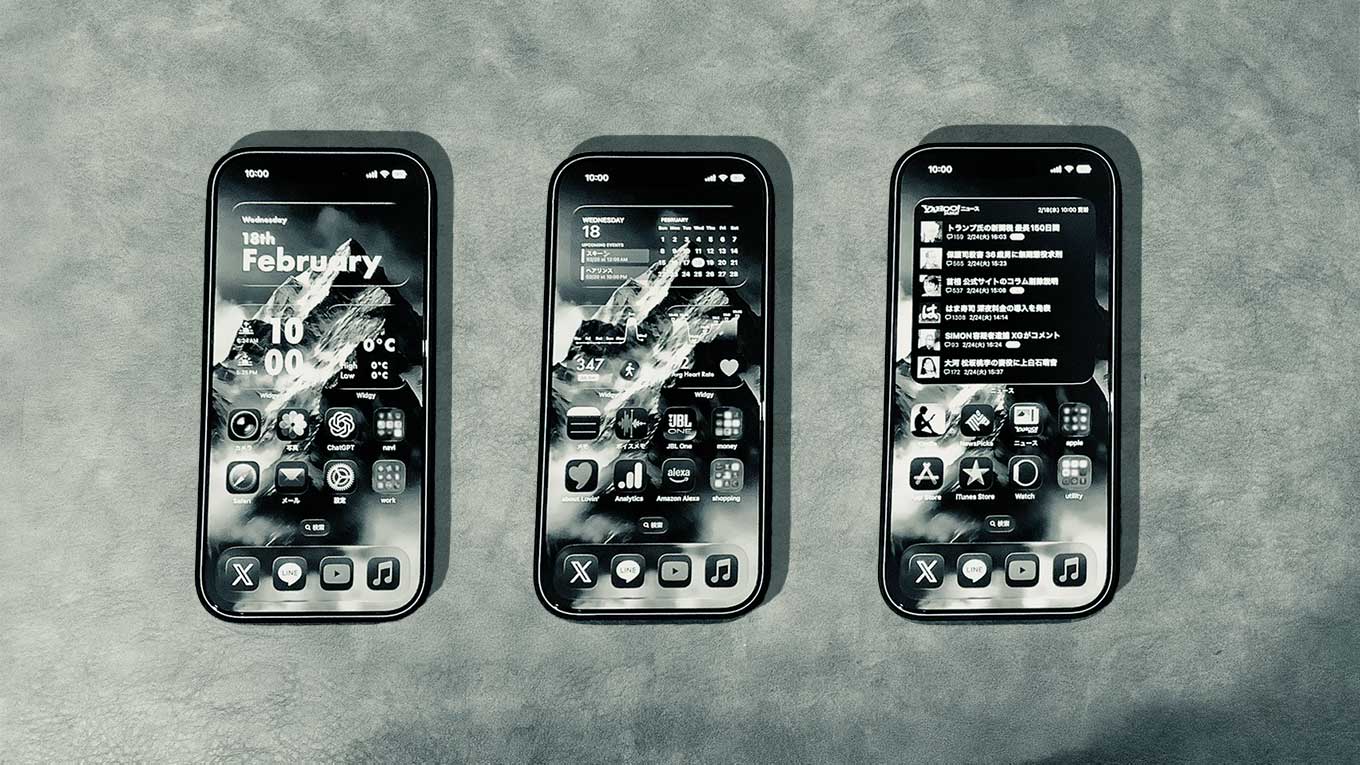
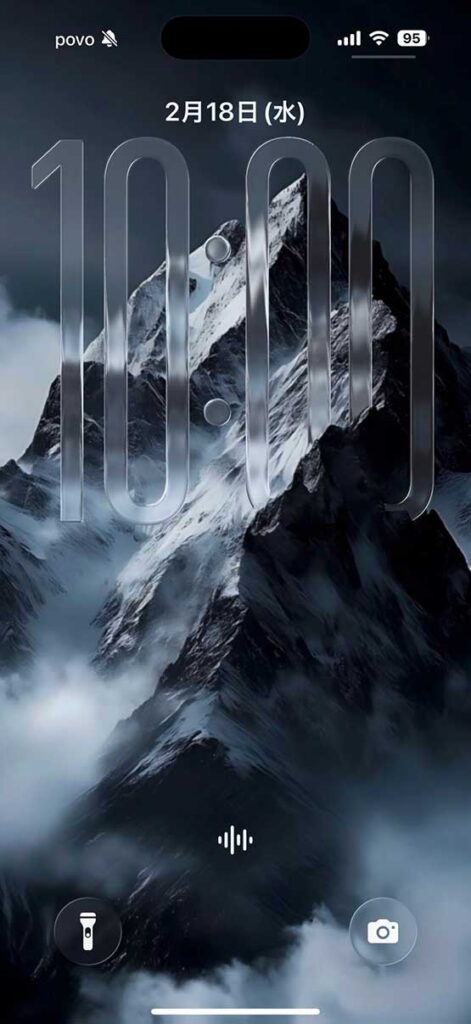
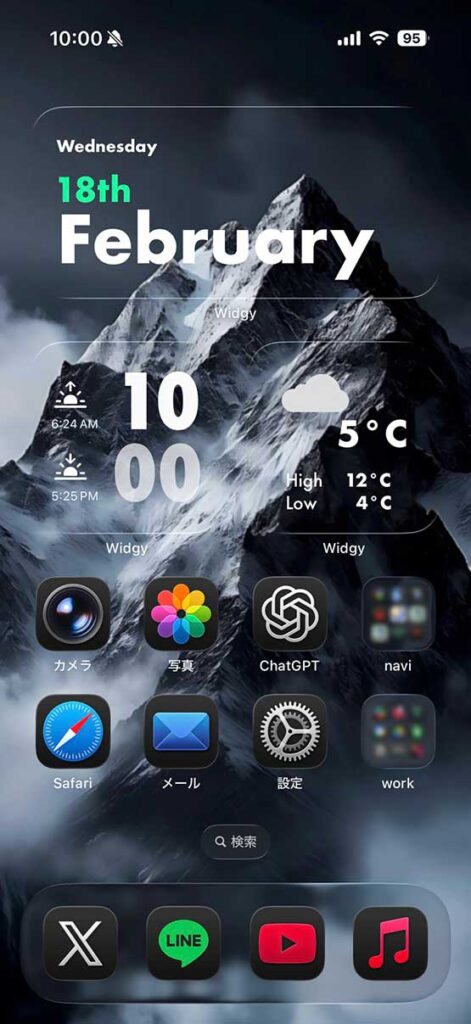
It is a lock screen and home screen after customization. The season is winter, so I decided to make a simple and transparent layout.
Lock Screen
Home Page
As usual, I was looking attube, and I met the following video. The simplicity, simplicity, and the transparency of the music were掴ed. You can see a variety of custom cases as you go to the channel. The channel itself was like a page of a company that sells wallpaper and custom gadgets.
Comfortable from wallpaper to home screen. I was imp。ed that it will change so much just by making it because it will be a lead line to see and touch. I was worried about buying images and custom widgets on sale, but I found that the custom widgets used can be purchased, so I decided to customize them myself.
There are many custom apps, but I chose "Widgy s" as the one used in the video. App Store
I am not able to install other apps.
A wide variety of information can be displayed
There are a lot of layer information that you can get and place various information from iPhone. Various information such as text, シンボル text, symbol, shape, image, line graph, various graphs, calendar, tap action can be arranged.
Wide variety of fonts
There are quite a number of font types that can be set. I think that you can choose from a number of other apps, but I think that you can find fonts that come from 100 or more fonts and styles.
Design Customization
Although it is a lively life, it is quite high if it is made from 0. Since the design created by volunteers can be searched, I think that it is the earliest time to find your favorite and use it as it is, or customize it and change it to your own preference.
Basically, you can use it for free, but if it is free, you can place the number of widgets (call the slot in the app). Unlick All Home Screen Slots I bought 1,300 yen as of February 22, 2026.
In addition, "the number of slots for Apple Watch" is 1,300 yen, but I think that it is enough to charge 1,300 yen if you only customize the home screen.
When you search for usage, it will come out, but I think it will be helpful for introduction.
However, as it is only for reference only, basically "Touch and trial and errorHome That’s it. I remember to find the time every day from 1 week to 10 days. You can learn only where you need it, so you don’t have to use all the features.
Although the Photo Gallery function is also in Widgy, it is not possible to switch automatically at a certain time, so some photo galleries use this widget.
I am not able to install other apps here.
Automatically switch photos
You can switch photos randomly by auto. You can choose between 5 minutes, 10 minutes, 30 minutes, 1 hour, 6 hours, 12 hours and 1 day.
*Widgy is the timing of the OS side (the concrete time is unknown) or tap to switch.
You can select the image display format
You can choose from two types of display that correspond to "clear" and "tint adjustment" of iOS icon customization setting.
Basically, you can use it for free, but if it is free, you can choose billing or advertising viewing when you add photos and save them. In the case of billing, it will be a subscription, and it will be 400 yen per month or 2,700 yen per year, but for the use of only the photo app, I have saved after viewing the advertisement without charge.
The first thing you think about is how to make it. I tried a lot of things, but finally, based on the following "deciding" I made customization.
How to customize the app icon
It is a function to customize the color of the icon that can be selected from iOS26. "Default", "Dark", "Clear" and "Tint adjustment", but if you select "Clear" or "Tint adjustment", the wallpaper will not be transmitted. You can choose what to think about using the transmittance of wallpaper.
How to change icons
There are a lot of custom-made channels, but you can change each app’s icon to a specific icon. For example, "Unify to the mono。 icon". If "clear" or "color adjustment" can be selected in the customization setting, it can be mono ized together, but if "default" or "dark", the color will remain.
If the app you are installing is quite small, and you don’t know much in the future, you can change the icon, but it will be quite useful if the number is too large or the app increases and decreases frequently. It is good to decide what to do.
Embed the app in the widget
For iOS iOSs, you need to use the shortcut to open a specific app. If it is "photo", the shortcut is not required, but if it is "camera", it will be via shortcut. In this case, the " cut" screen will be launched. It is necessary to consider whether to allow them or to use only those that do not come out because there is a difference between one-tempo late feelings, leaving by the app and leaving.
"Dark" to customize the app icon
I chose "Dark" because I wanted to calm the color to become a whole.
Don't change icons
Because there are quite a lot of apps, I decided to use the icon as it is because it takes a 。endous amount of time to change one by looking for the icon.
Limited application launch in widget
I was thinking of setting up an app icon in the initial widget, but I saw the installation of the app icon because the shortcuts come out/not come out. Only specific widgets have a non-リンクcut link.
Make a theme for each home screen
In the home screen, we organized the app with the theme for each page, such as basic information and the second page, schedule and physical condition management.
The layout is basically unified
The upper half of the screen is the widget area, and the lower half is the app area. In addition, the layout of the folder structure is fixed only in the upper column of the lower half. Basically, smartphones operate on the left hand side, so the app that is frequently used is improved as much as possible with the fourth to enter the folder.
How to proceed
After remembering the basic usage, I think that the style of editing your favorite widget that you can search is most easy.
Also, if you don’t know where to customize it, you can adjust it by attaching the screen to chatGPT. You can also use other AI tools such as Gemini. There was also a hullネーションion (reply different from the facts), but I think it was interesting to hear AI because the page that explains Widgy is limited.
The lock screen is fixed on one page, the home screen is 6 pages, and the widget screen on the left of the home screen is fixed on one page, and total 8 pages.
Point
Theme
Basic Info + Frequency Top
Point
注意
Although Widgy’s transmission app has thin lines up and down, it cannot be deleted completely by iOSiOS.
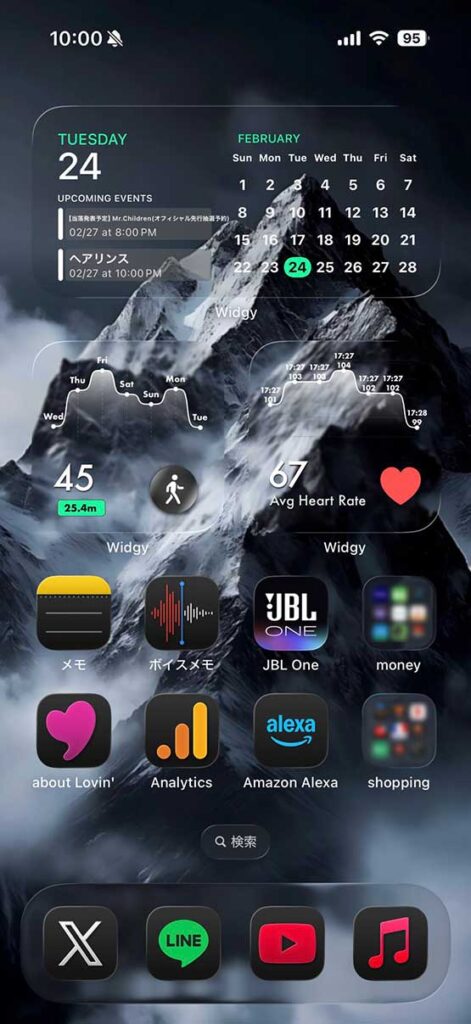
Theme
Schedule + Health + Common Tools
Point
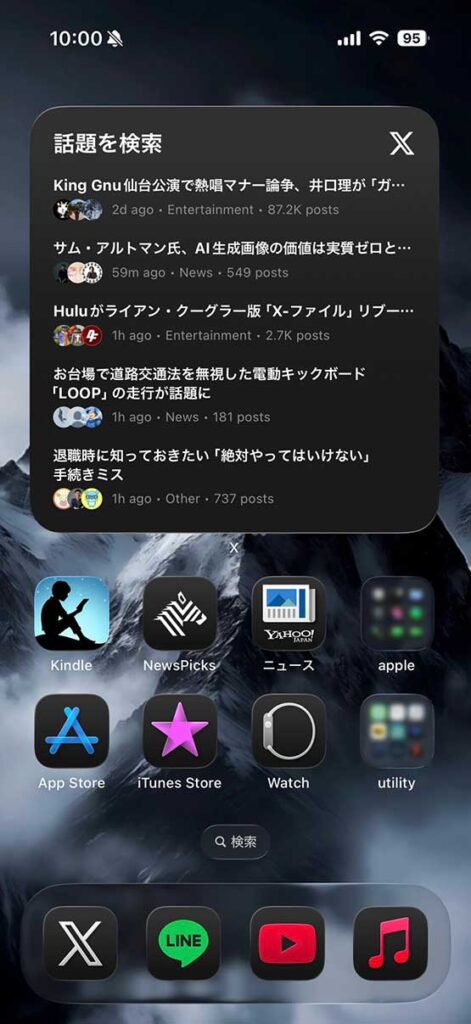
Theme
News + ニュース
Point
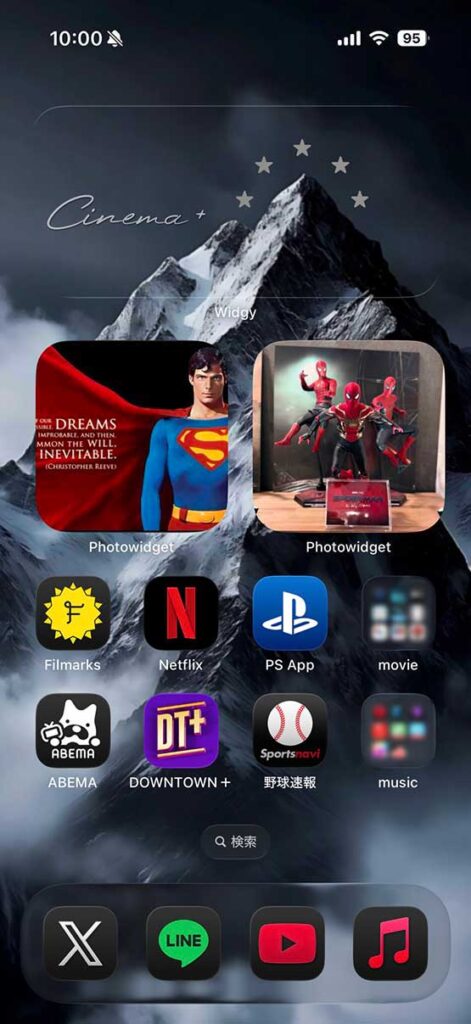
Theme
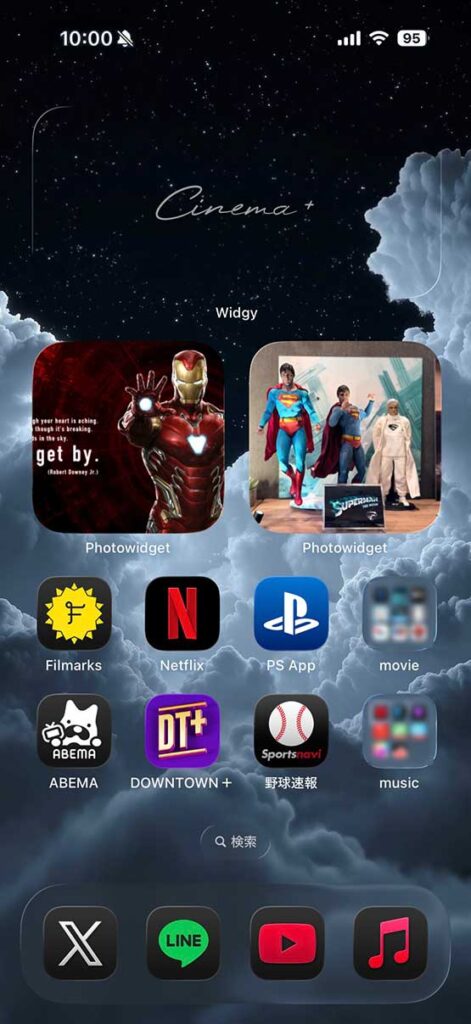
Cinema+)
Point
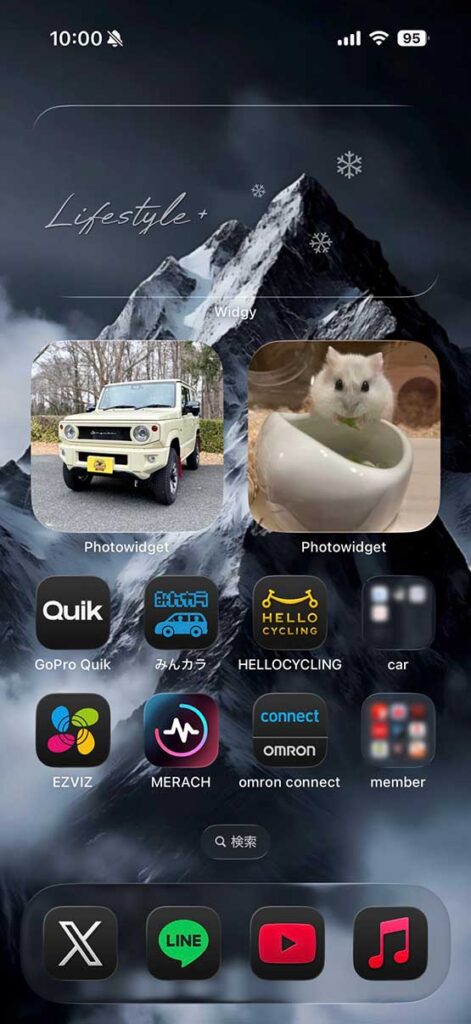
Theme
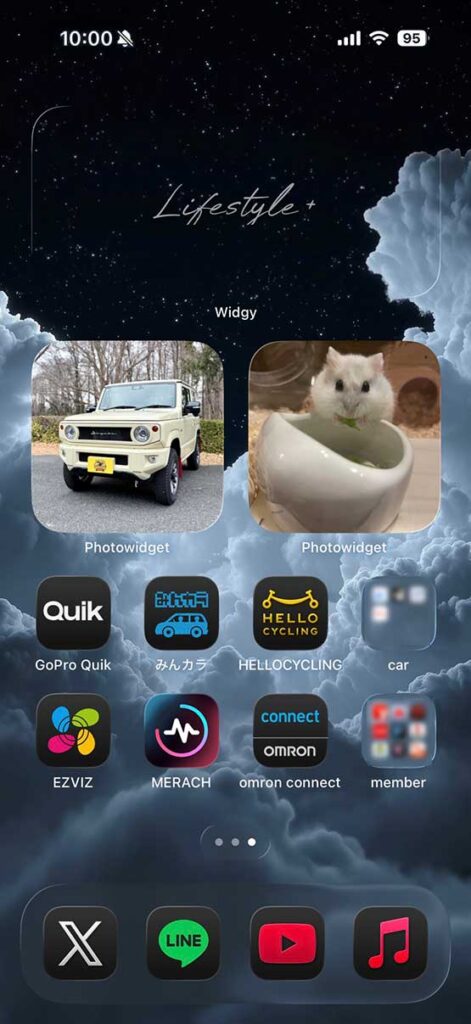
Lifestyle++ Health
Point
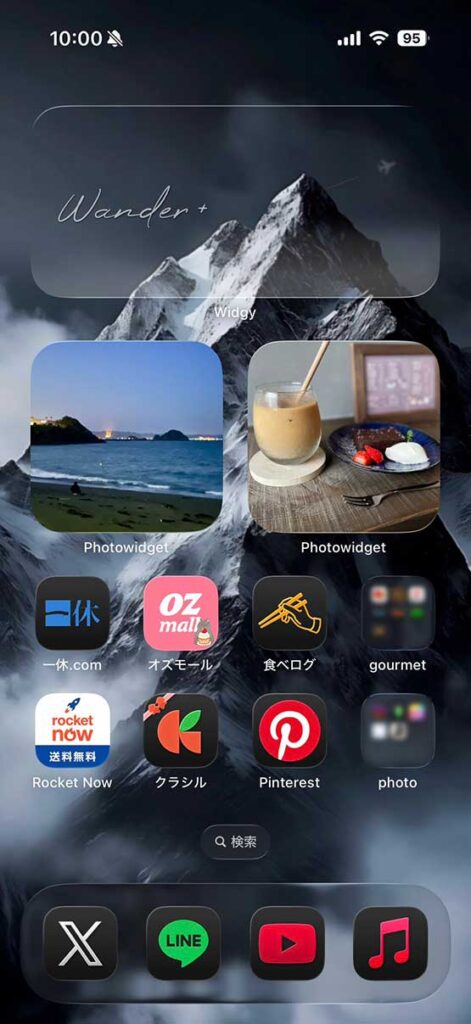
Theme
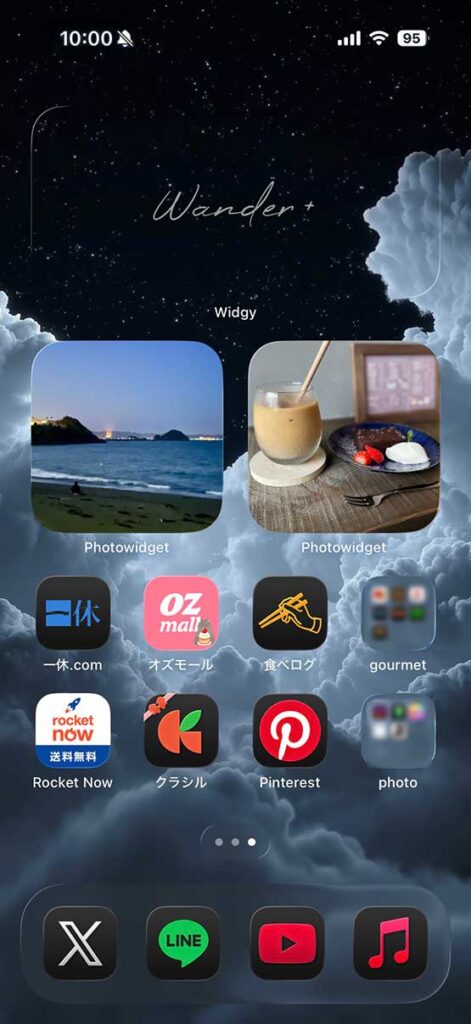
Wander+)
Point
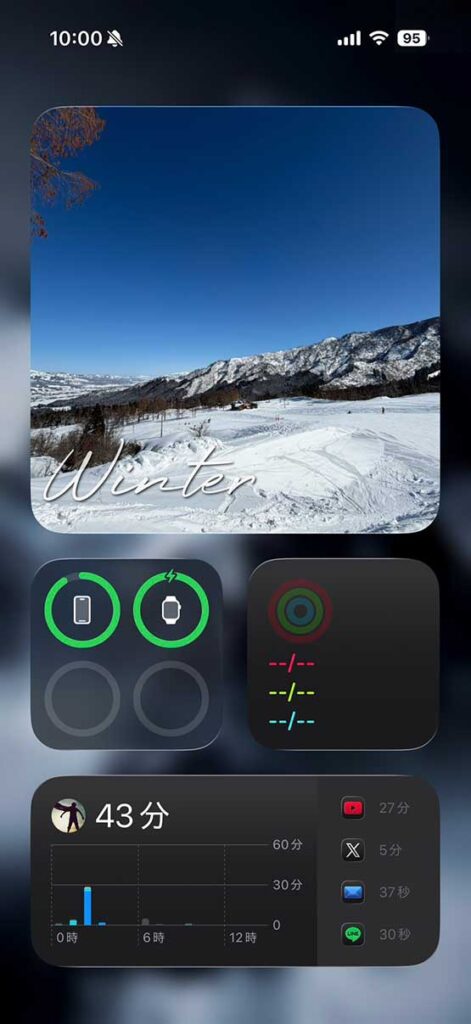
Theme
Photo + Measurement
Point
When Widgy changes the background image, the corresponding transparent background is generated. The 4th to 6th page of the home screen customizes the title according to the mountain, but we created a general version that does not depend on the layout when changing the photo. A simple title is placed in the middle position, but it can be displayed in a good balance regardless of the photograph.
It is necessary to ensure the time you can fully touch Widgy, but if you can make your own home screen, it will be quite satisfied. If you want to change the home screen, please try it!